Before you start
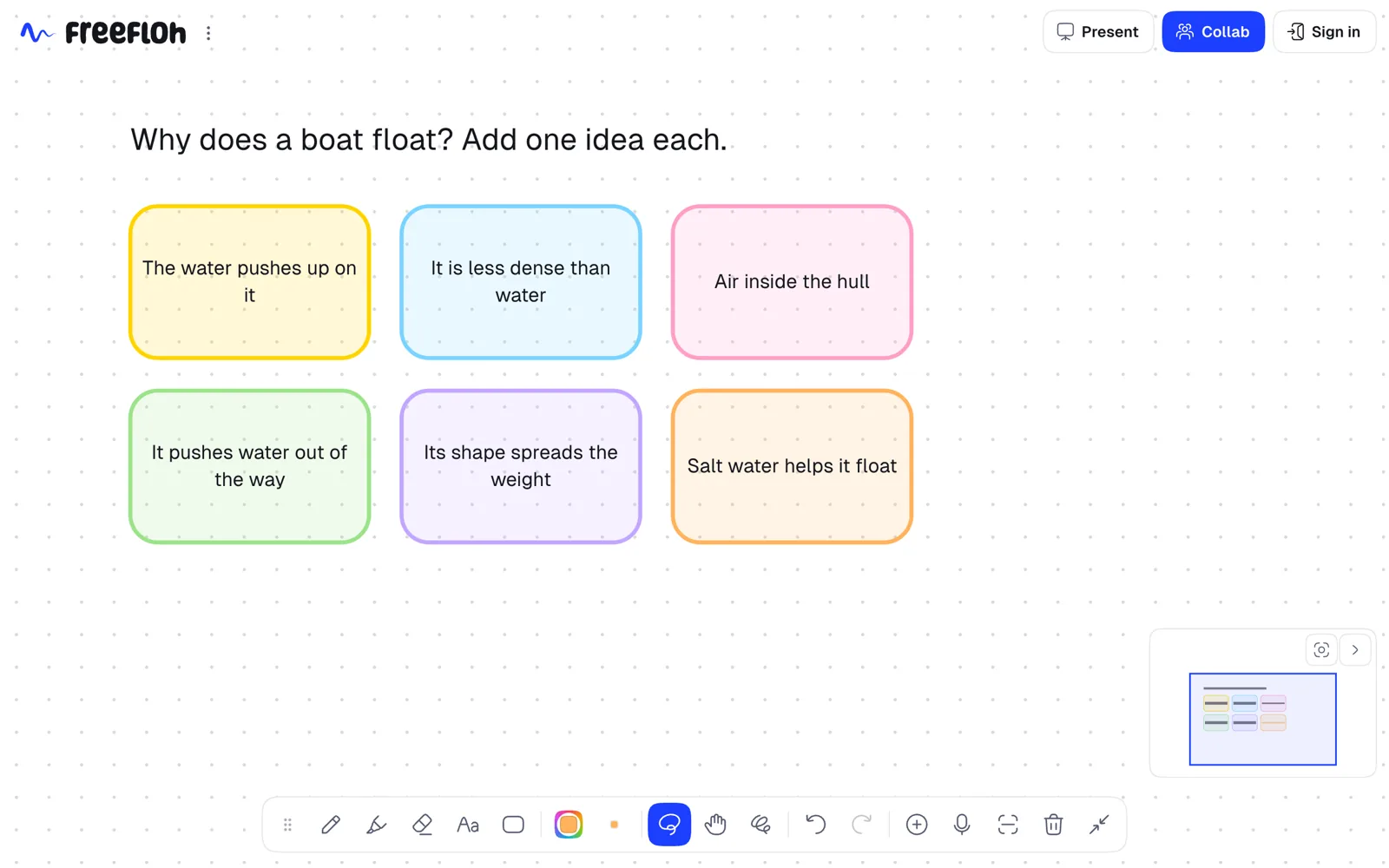
Say you used to open every Friday with a sticky-note brainstorm on Jamboard. The cards below do the same job: a rounded rectangle from Shapes, with a Tint fill in any color and words typed inside. FreeFloh has no sticky-note object of its own, so this is the closest thing, and it works well.
Give each activity its own board, so you can come back to it next year. For students to add cards from their own devices, save the board to the cloud and press Collab to start a FreeFloh Jam, then choose whether they join as viewers or editors. Jams are on Plus and Ultra, students sign in with a free Google account to draw, and only you pay.
1. A sticky-note style brainstorm
- Type the question at the top of the board with the Text tool.
- Open Shapes, pick the rounded rectangle, and drag out a card. In the selection bar, set Fill to Tint, then press Enter and type an idea.
- Ask each student to pick a color and add one card per idea. Each new card appears on every screen as it lands.
- Drag related cards together as themes appear, and circle the strongest ideas with the pen.
2. An exit ticket
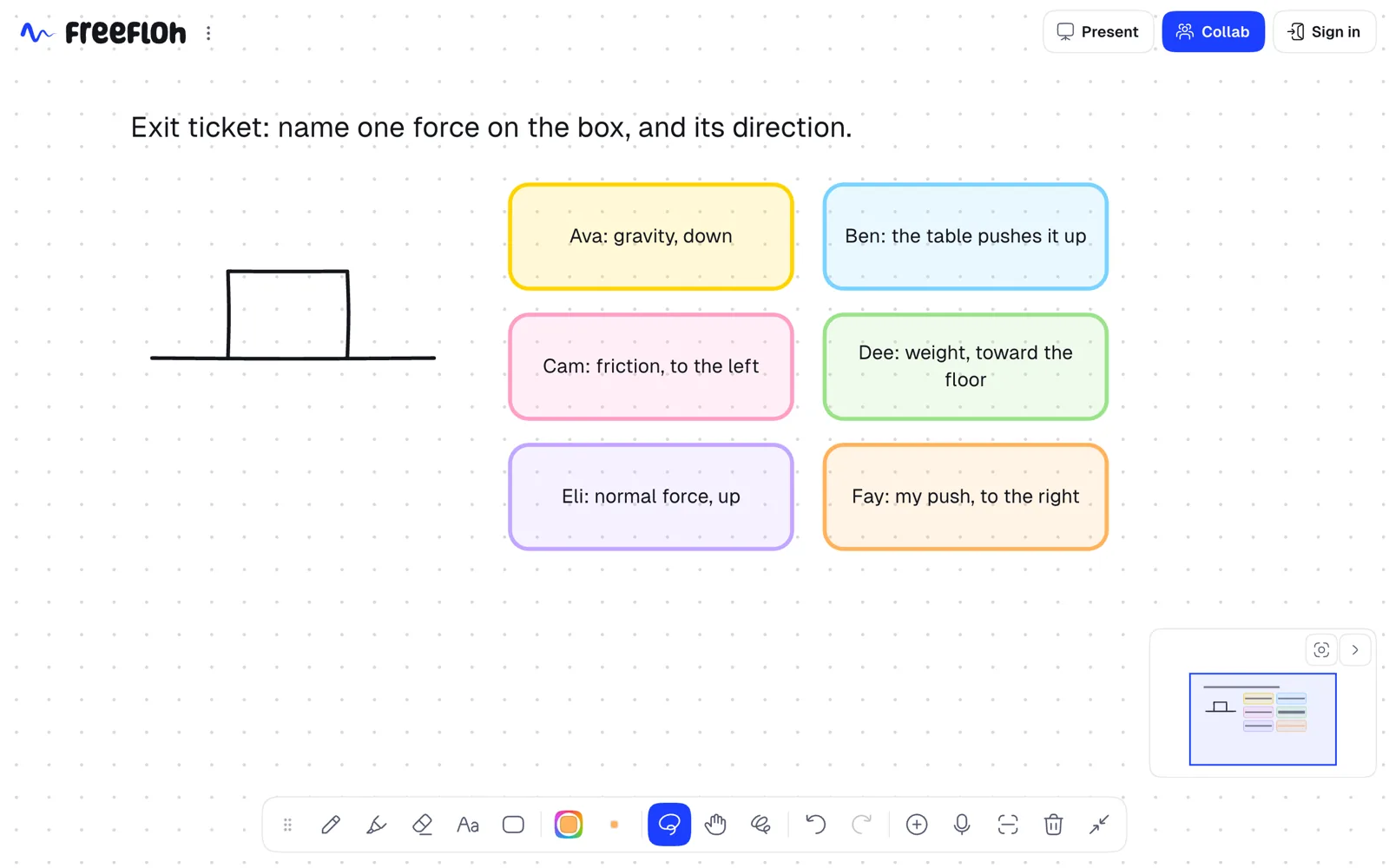
- Write one question at the top, and sketch whatever it refers to.
- Ask each student to add a card with their name and their answer, or to write it by hand in their own space.
- Read the answers on screen with the class, or scan them after the lesson.
- Keep the board, or export a PNG of it from Capture once you sign in with Google.
3. Sort and classify with a T-chart
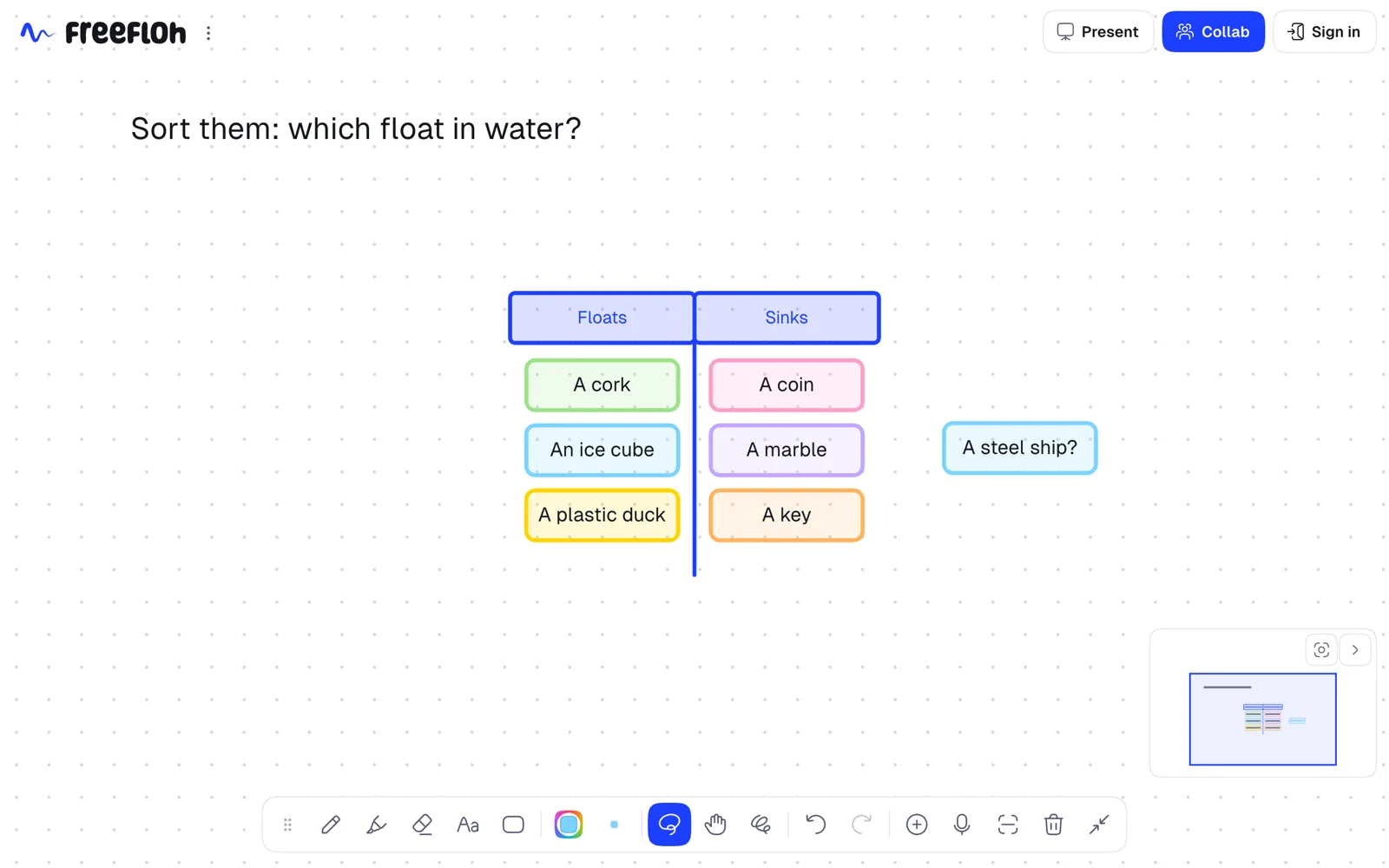
- Open Shapes and choose the T-chart from Diagrams. Double-click a heading to rename it.
- Add the items to sort as cards beside the chart.
- Students drag each card to the side it belongs on. For overlapping groups, use the Venn diagram with two or three circles instead.
- Leave one tricky card outside the chart, and sort it together as the last step.
4. Annotate a source together
- Drop in an image or a PDF. Each PDF page lands as an image, up to 50 pages at a time.
- Students highlight key lines and write their notes in the space around the page.
- Point at the line you mean with the laser pointer, whose trail fades on its own.
The guide to annotating a PDF online covers the tools in detail.
5. Work a problem together
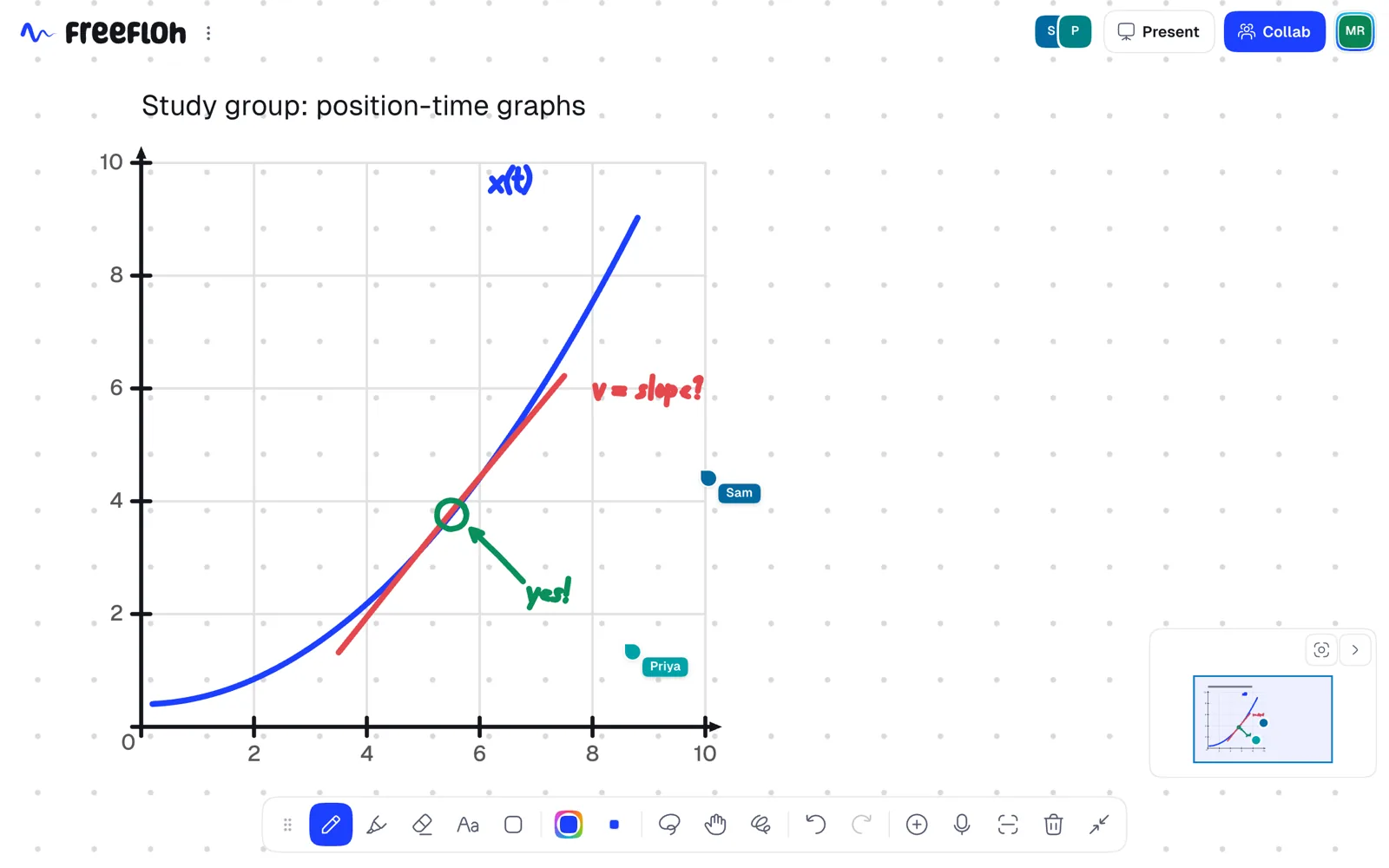
- Type the question, with any math in LaTeX between dollar signs.
- Drop in a graph, a coordinate grid or a number line from Diagrams, and set its range in the graph settings.
- Write the first step by hand, then hand the next step to a student.
What FreeFloh leaves out
FreeFloh has no timer, no voting, no templates and no separate board for each student. FigJam and Miro have timers, votes and templates, and Whiteboard.fi gives every student their own board that you watch from one screen. Compare them in the best Jamboard alternatives for classrooms.
Jamboard is a trademark of Google LLC. FreeFloh is not affiliated with Google.
Questions
Can I make sticky notes?
Use a card: a rounded rectangle with a Tint or Solid fill and words typed inside. Duplicate it for more. FreeFloh has no separate sticky-note object.
Can students work at the same time?
Yes, in a FreeFloh Jam on Plus or Ultra. Each stroke and card appears on every screen as it is made, and everyone's cursor shows their name.
How many students can join?
Two can draw with you on Plus and 39 on Ultra, and more can watch. Schools can contact us for an organisation plan.
Can I save the activity?
Yes. The board saves as you work, in your browser or in the cloud on Plus and Ultra, and Capture exports a PNG once you sign in with Google.