Annotate any PDF online, with beautifully natural ink.
Drop in a worksheet, a reading or your lecture slides. Write, highlight and work out the answer right beside the page.
Open a PDFfree in your browser
Drop in a worksheet, a reading or your lecture slides. Write, highlight and work out the answer right beside the page.
Open a PDFfree in your browserSay your teacher posts the worksheet as a PDF at nine at night and the printer is out of ink. Open it on a board and work straight on the page.
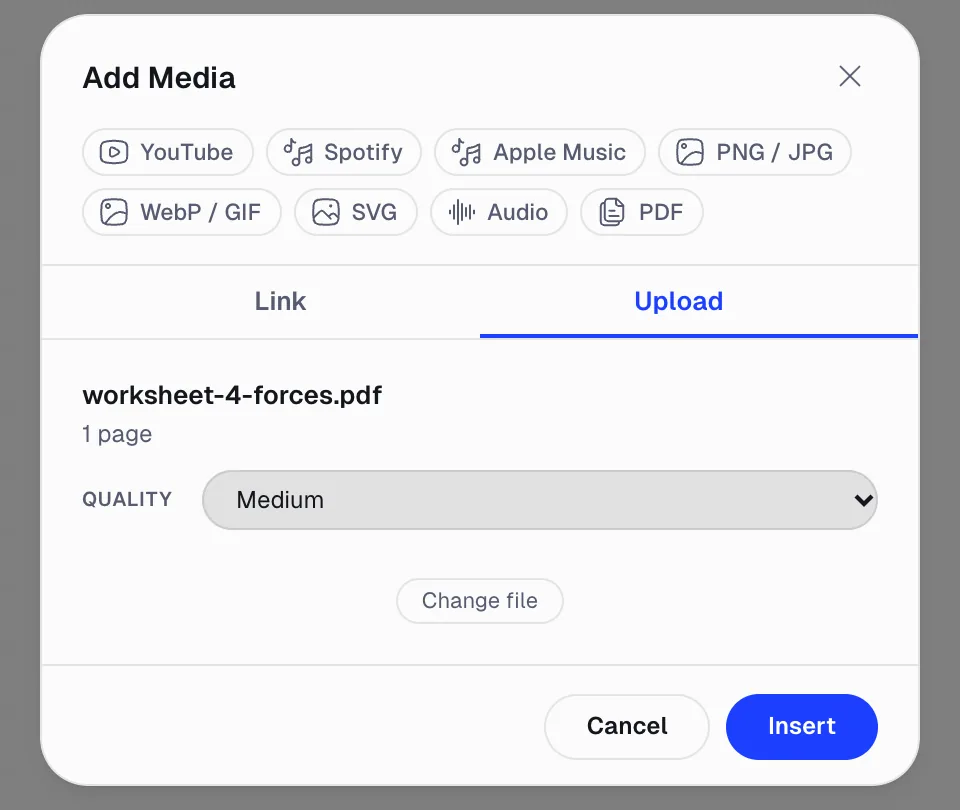
Drag a PDF onto the board, or choose it under Add media. Pick the pages you want, up to 50 at a time.
Every page lands on the board as an image. Write over it with the pen, mark it with the highlighter and use the space around it for your working.
FreeFloh saves the board in your browser as you work. Export it as a PNG image, record yourself explaining it, or share it on Plus and Ultra.
Your marks stay on the board and export as an image. To hand back an annotated PDF file, use a PDF editor: three good ones are compared below.
Write on the page the way you would with a pen in your hand, and use the space around it when the margin runs out.
Bring in a whole worksheet pack or just the page you need. Choose the pages and the quality, then insert.
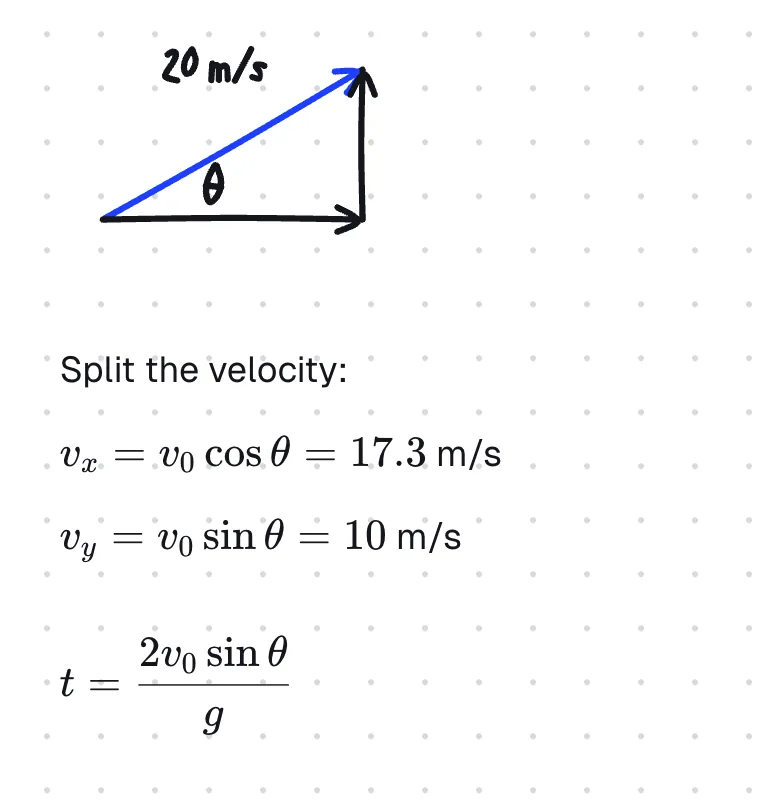
A classmate texts you at ten asking how you got 2.04 seconds. Record the page and your voice instead of typing it all out, or open the page together.
The built-in recorder captures the board, your voice and a pointer as one video, made in your browser. Download it as WebM or MP4 once you sign in with a free Google account.
A tutor on Plus or Ultra presses Collab to start a FreeFloh Jam and sends the link. The student writes on the same page, and the tutor sees each line the moment it appears.
FreeFloh is the board thousands of students, tutors and teachers use on Nerd Notes. Teaching from worksheets every week? See the online whiteboard with PDF upload for live lessons, or the whiteboard recorder and the collaborative whiteboard.
Finish the worksheet tonight, close the laptop, and it is still there in the morning.
FreeFloh saves the board in your browser on that device as you write. When it is time to hand it in, open Capture and export a PNG of the page and your working, or of the whole board, up to 4K. Capture asks you to sign in with a free Google account first, and the image carries a small FreeFloh mark. If your class uploads PDFs, use one of the editors below: FreeFloh keeps your marks on the board and doesn't write them back into the PDF file. On Plus and Ultra, the same board opens on your phone, your laptop and the school computer.
Choose one of these when you need the PDF itself, with your notes inside it.
| What you can add | Account | Where the file goes | What you get back | |
|---|---|---|---|---|
| Adobe Acrobat online | Sticky notes, text boxes, freehand drawing, lines, shapes and highlights | A free Adobe account to add comments and to download | Adobe's servers | The edited PDF |
| PDF24 Tools | Sticky notes, text boxes, highlights, arrows, shapes, images and freehand drawing | None | PDF24's servers in Germany, deleted after one hour | The annotated PDF |
| PDFgear online | A smaller set of tools, with single-color brushes | None | Stays in your browser | The PDF |
| FreeFloh | Pressure-sensitive ink, a highlighter, shapes, diagrams, typed math and voice notes, on an endless board | None to write; a free Google sign-in to export or record | Stays in your browser | A PNG image, a video, or a shared board on Plus and Ultra |
FreeFloh fits better when the work needs room around the page: a problem solved in your own handwriting, typed math beside it, a voice note, or a recorded explanation.
We read each tool's own page on November 16, 2026: Adobe Acrobat online PDF editor, PDF24 Annotate PDF and PDFgear Annotate PDF. Features change, so check their pages before you choose. Adobe and Acrobat are trademarks of Adobe. FreeFloh is not affiliated with Adobe, PDF24 or PDFgear.
Yes. Importing a PDF and writing, highlighting and drawing on its pages are free. Exporting a PNG asks for a free Google sign-in, and sharing the board live comes with Plus or Ultra.
No. Your browser turns each page into an image on your device. If you save the board to the cloud on Plus or Ultra, those page images are saved with the board.
No. FreeFloh exports your board as a PNG image and keeps your marks on the board. To hand back an annotated PDF file, use a PDF editor such as Adobe Acrobat online, PDF24 Tools or PDFgear.
Yes. The Text tool puts a text box anywhere on the page, and math typed between dollar signs is set as LaTeX.
Yes. Open FreeFloh in Safari on iPad, import the PDF and write on its pages with Apple Pencil, with pressure setting the width of each line.
Up to 50 pages at a time. Import again to bring in more, and the board has room for all of them.
Open FreeFloh, drop in the PDF and start writing.
Open FreeFlohfree, no installFreeFloh is built by a teacher, for teachers. Used in real classes across dozens of school districts and the world's leading learning sites like nerd-notes.com.