The steps use FreeFloh, a whiteboard that runs in the browser. Recording needs a free Google sign-in. Once you have recorded your first lesson, the guide to recording a whiteboard lesson has more tips on planning, pacing and sound.
What you need
- You need a laptop, Chromebook or tablet with a current version of Chrome, Edge or Safari.
- You need a Google account to sign in with before you record.
- The microphone built into your device is enough to start, and a headset makes your voice clearer.
- Set aside ten quiet minutes for your first try.
Why nothing needs installing
Say IT has locked the school Chromebooks and the screen recorder you used last year won't install. You don't need it: everything below runs in the browser tab.
FreeFloh is a web page. The board, the pens and the recorder all run inside the browser tab, and the browser's own recording feature makes the video. You don't download an app, and your school's IT team doesn't need to approve an extension. The page only has to load like any other website, so if your school blocks it, ask them to allow freefloh.com.
1. Open a board and put your lesson on it
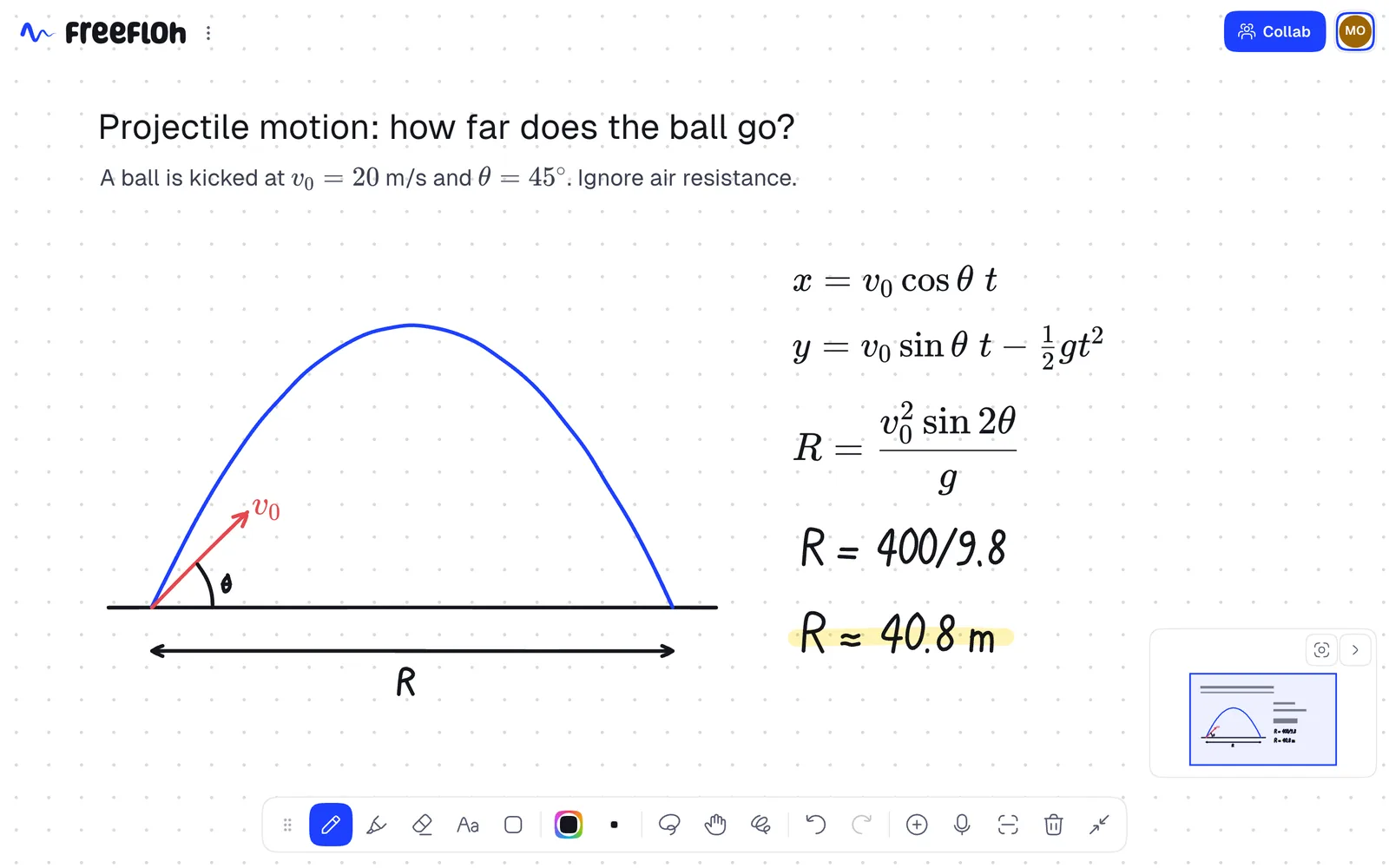
Go to freefloh.com/app. A blank board opens, and you can write on it straight away with a mouse, a trackpad, a touch screen or a stylus.
Put everything you will teach from on the board before you record. Type a title with the Text tool, and type maths between dollar signs, such as $E = mc^2$, to set it as an equation. Draw diagrams with the pen or the Shapes button, and drop in a worksheet as a PDF or an image. FreeFloh brings each PDF page onto the board as an image you can write on.
2. Sign in with Google
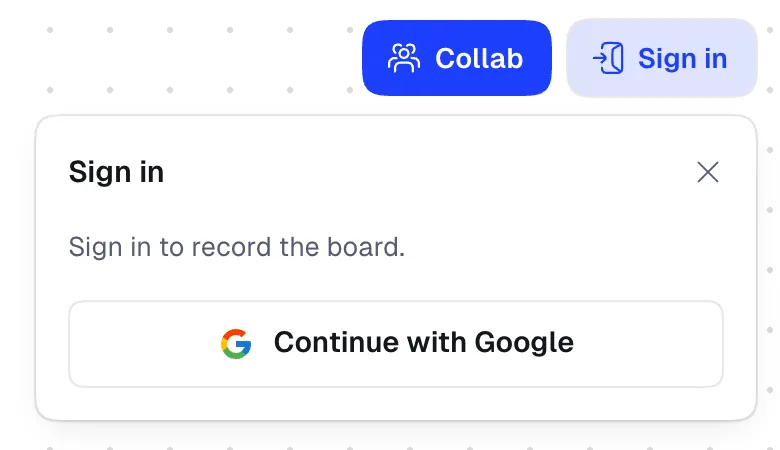
Open Capture on the toolbar and choose Recording, or right-click the board and choose Record screen. The first time, FreeFloh asks you to sign in. Choose Continue with Google and pick your account. Google sends you back to FreeFloh, signed in, and you open Capture again to record. Signing in is free.
3. Choose what goes in the video
The recording options open after you choose Recording. These four settings matter most:
- Leave Record on Board. On a desktop browser, Board + embeds records the tab cut to the board instead, so a YouTube video on the board plays in your recording, and your browser asks which tab to share.
- Pick 1080p and 16:9 for a video that fits most players and learning platforms, or 9:16 for a video students watch on a phone.
- Set Pointer in video to Spotlight, so a soft highlight follows your pen or mouse in the video.
- Turn on Enable Microphone. The first time, your browser asks whether FreeFloh may use the microphone, and you choose Allow.

4. Record the lesson
Press Start Recording and teach. A small bar at the top right shows the time, the pointer setting and the stop button, and you can switch the pointer from that bar while you record.
Write and draw as you talk. Everything you add goes into the video as you add it, including strokes, typed text and images. If you make a mistake, press undo and carry on, or stop and record that part again.

5. Download the video
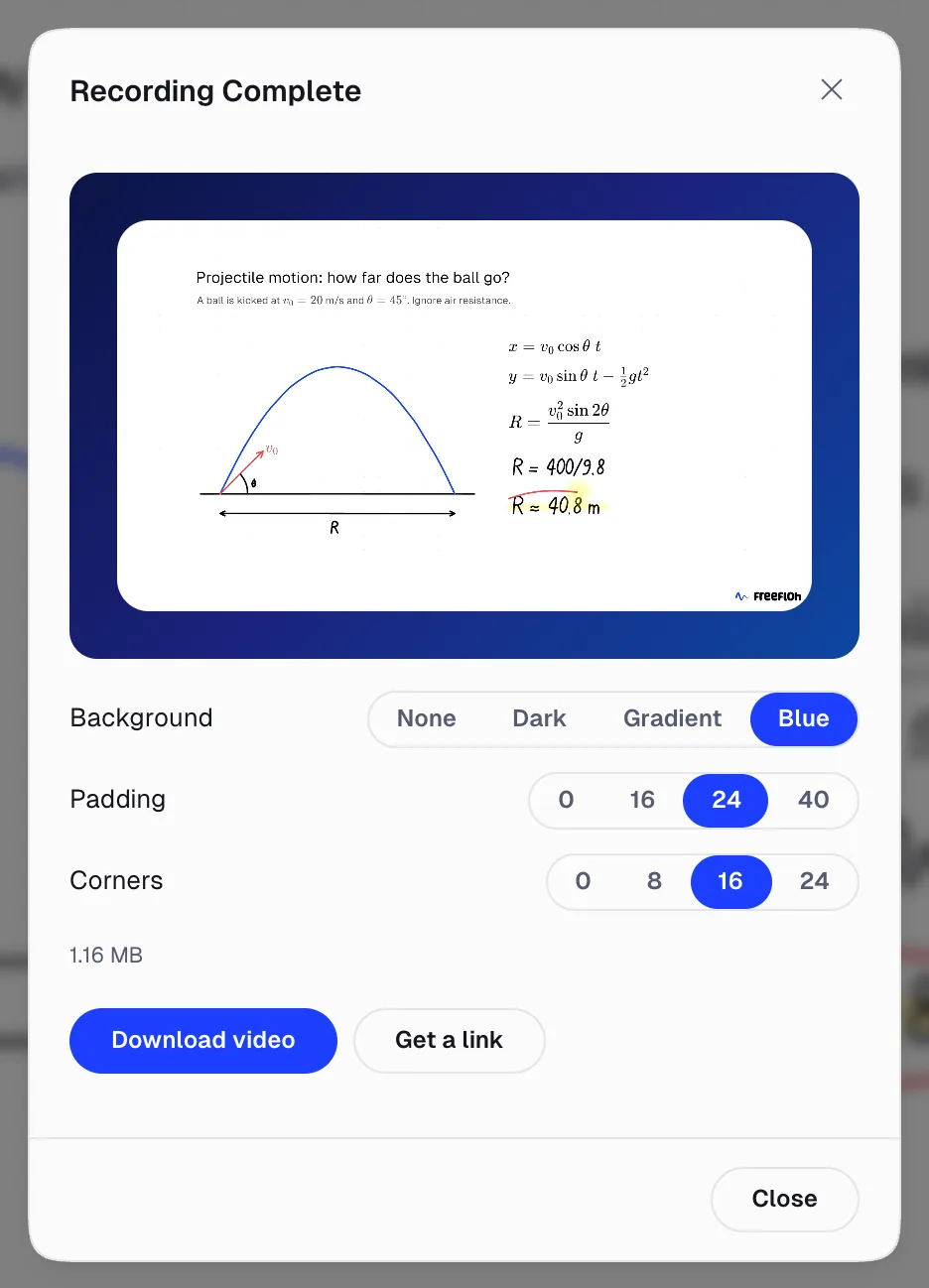
Press the stop button. FreeFloh shows the finished video, and you can give it a background, padding and rounded corners. Press Download video to save the file to your device. Your browser makes the video, so it is never uploaded unless you choose Get a link.
Depending on your browser, the file is an MP4 or a WebM video. When it is WebM, the Convert to MP4 button makes an MP4 copy in the browser, for platforms that only accept MP4.
6. Get the video to your students
- Upload the downloaded file to your learning platform, a shared drive or an unlisted YouTube video, wherever your students already look.
- On FreeFloh Plus or Ultra, choose Get a link instead. Students open a page that plays the video in any browser with no account. Each link lasts 60 days, and linked recordings can be up to 20 minutes on Plus and 60 minutes on Ultra.
When something doesn't work
- If the video has no sound, check that Enable Microphone was on and that the browser may use the microphone. In most browsers, the icon at the left of the address bar opens the site's permissions.
- If you don't see Board + embeds, your browser can't record a tab, so record with Board.
- If freefloh.com doesn't open on a school device, the school may block it. Ask your IT team to allow the site.
Questions
Do I need to install anything to record a lesson?
No. FreeFloh runs in your browser. To record, you sign in with a free Google account.
Does it work on a school Chromebook?
FreeFloh runs in Chrome on a Chromebook with nothing to install. If your school blocks the site, ask your IT team to allow freefloh.com.
Is recording free?
Yes. Recording and downloading the video are free once you sign in with Google. Links to recordings come with Plus or Ultra.
How long can a recording be?
FreeFloh sets no length limit on a recording you download. A recording you share by link can be up to 20 minutes on Plus and 60 minutes on Ultra.
Can I record my face as well?
No. FreeFloh records the board, your voice and your pointer. If you need a camera, the comparison with Loom explains where Loom fits.